Cmd-Tab, but it knowswhat you’re doing.
An AI model on your Mac puts the windows for the task you’re in at the top.
Beta opening soon for macOS 14+Scroll to press ⌘ Tab ↓


Real screenshots from a Mac. Fuwa’s panel is redrawn for the web.
Tab, tab, tab…



You want~/Flow — npm run dev
×1press
Cmd-Tab walks through apps in the order you last used them. Five presses to reach Ghostty, and then it opens whichever Ghostty window you used last, not necessarily the one you need.
Same windows.Different task.
You’re in
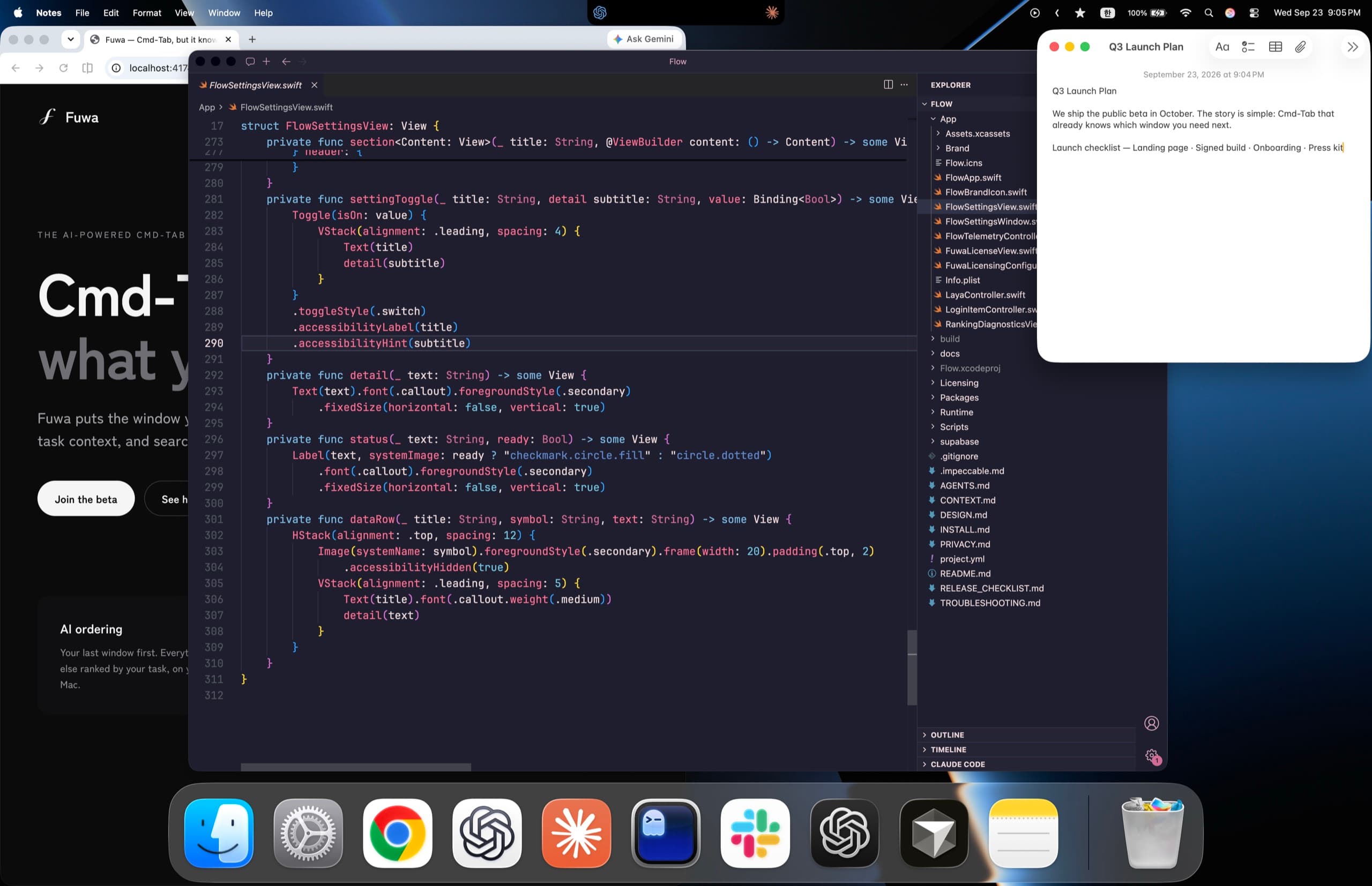
The instant you press Tab: recent order


The order comes from a model on your Mac, offline, on Apple Silicon. Named groups need Deep context, which is off by default and sends window titles to OpenAI through your own Codex sign-in.
Just type.
A name, a typo, or plain words for what you meant.
Instant match, typo and all

The keys you already know.
Fuwa takes over Cmd-Tab and keeps the gesture. The panel opens from a list prepared in the background, so no window scan, model or network call runs between your keypress and the panel.
- Select next
- ⌘⇥
- Select previous
- ⌘⇧⇥
- Move through the list
- ←→
- Show every window
- ⌘⌥
- Close the selected window
- ⌘W
- Quit its app
- ⌘Q
- Cancel
- esc
- Switch
- release⌘
What leaves your Mac.
Window titles can be personal, so here is where they go.
Processed on your Mac
- Window observation and focus order, through macOS Accessibility.
- AI ordering and search, by a model on your Mac. Text only, never screenshots.
- Switching habits: which apps you switch between, never window titles.
Only if you turn it on
- Deep context sends window titles and app names, including other open windows, and short task summaries to OpenAI through your own Codex CLI sign-in.
- Screen context sends a still of the focused window only. Never other windows. No screenshot history.
- Both are off by default. Nothing runs when you press Cmd-Tab.
During the beta
- A learning stream is on by default: window titles, searches, rankings and choices help improve Fuwa.
- Turn it off and delete pending events in Settings at any time.
- No screenshots, clipboard, documents or typing outside Fuwa.
Set up in two minutes.
- 1
Open Fuwa
Move it to Applications and open it. A small icon joins your menu bar.
- 2
Allow Accessibility
One switch in System Settings. Until then, normal Cmd-Tab keeps working.
- 3
Press Cmd-Tab
Recent-window switching works right away. Smart ordering warms up in the background.
Needs macOS 14 or later. On-device ordering needs Apple Silicon.
Allow the applications below to control your computer.
 Fuwa
Fuwa
Questions
Yes, at the window level. Turn Fuwa off from the menu bar and normal macOS Cmd-Tab comes right back.
 Fuwaふわ
Cmd-Tab, but it knows what you’re doing.
Beta opening soon for macOS 14+